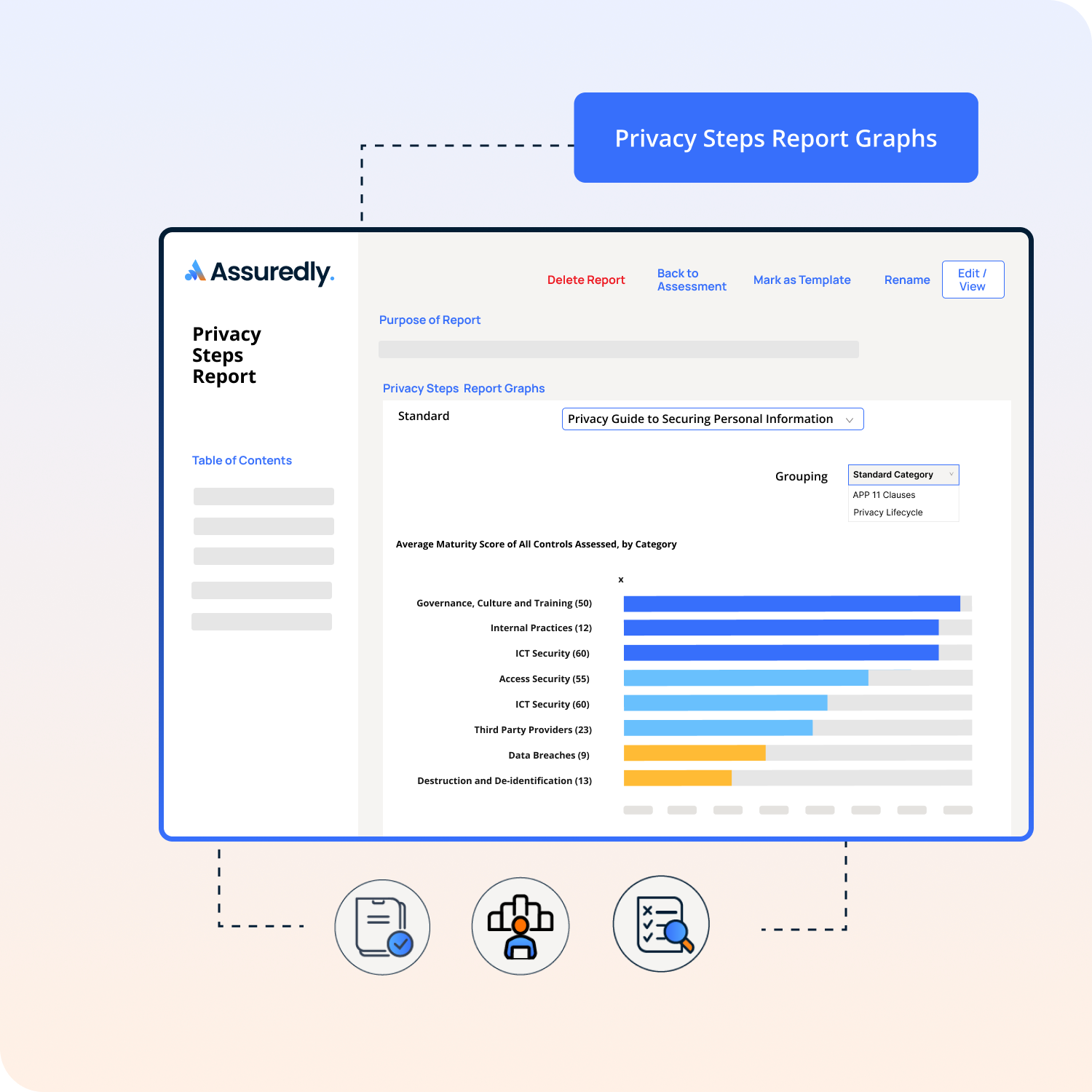
Assuredly's Privacy Reasonable Steps Assessment helps organisations measure their compliance with the reasonable steps required under the Australian Privacy Act 1988 (Cth). The assessment is guided by the Office of the Australian Information Commissioner's (OAIC) Guide to Securing Personal Information, which the OAIC uses when investigating whether an entity has met its personal information security obligations.
Each control in the assessment maps to specific obligations. The taxonomy feature adds two additional lenses so users can answer common questions such as:
"Which controls in my assessment relate to APP 11 — and which specific clause?"
"How well are we managing personal information at each stage of the data lifecycle?"
Privacy Lifecycle
What is the Privacy Lifecycle Taxonomy?
Personal information moves through a lifecycle within every organisation — from the point it is collected, through how it is used and stored, through to its eventual destruction or de-identification. The OAIC's Guide to Securing Personal Information addresses obligations across all of these stages.
Assuredly has tagged controls in the Privacy Reasonable Steps assessment with the lifecycle stage they relate to. The four lifecycle stages are:
Collection - Controls that relate to how personal information is gathered, received, or generated by your organisation.
Use - Controls that relate to how personal information is accessed, processed, or applied within your organisation.
Storage - Controls relating to how personal information is held, secured, and maintained.
Destruction - Controls relating to the secure deletion, de-identification, or disposal of personal information no longer required
APP 11 Clauses
What is the APP 11 Clause Taxonomy?
Australian Privacy Principle 11 (APP 11) requires entities to take reasonable steps to protect personal information from misuse, interference, loss, and from unauthorised access, modification, or disclosure. APP 11 is further broken down into specific sub-clauses, each addressing a different aspect of how personal information should be protected.
Assuredly has tagged each relevant control in the Privacy Reasonable Steps assessment with the specific APP 11 sub-clause it relates to. This allows you to see — at a glance — which parts of APP 11 each of your controls and risks supports.
Why this matters
Auditors and regulators ask: "Which controls support which part of APP 11?" You can now answer instantly.
Improves defensibility — your report shows exactly which Privacy Act provisions each control addresses.
Clients and boards can see transparency across specific obligations, not just an overall maturity score.
Quickly identify gaps in coverage for a specific APP clause before a regulatory review
Note: The exact list of APP clause tags is built into the Assuredly taxonomy. Not every control maps to an APP sub-clause — some controls relate to broader governance or training requirements
How to Create a Privacy Steps Report
To create a Privacy Steps Report you can use a template or start your own report.
There are a number of ways you can see your Assessment results in the Assuredly platform.
Adding a Data Table to your report
To report results in a table:
Open the Report Editor for your Privacy Reasonable Steps assessment.
Select Add Section/Standard
Sekect Add Item/Table
Select the columns you wish to show in the report
Use the arrows to move colums into their desired location
Use the filters to filter the data you wish to display.
How to filter a table by Privacy Lifecycle View
Open the Report Editor for your Privacy Reasonable Steps assessment.
Select Add Section/Standard
Sekect Add Item/Table
Go to the Privacy Lifecycle filter and drop down to select one or more lifecycle stages.
How to filter a table by APP Clause
Open the Report Editor for your Privacy Reasonable Steps assessment.
Select Add Section/Standard
Sekect Add Item/Table
Go to the APP Clauses filter and drop down to select one or more APP Clauses.
Adding Graphs to your report
To report results in a graph:
Open the Report Editor for your Privacy Reasonable Steps assessment.
Select Add Section/Standard
Sekect Add Item/Bar Graph
Select the Standard name
Select the Grouping Model you wish to display
There are 3 grouping model available to view the results of your assessment in bar graph format:


.png)